How to Install CloudStream on PC & Windows 10/11 – Step-by-Step Guide 2026

Want to install CloudStream on PC? Use an emulator or WSA — completely free, no subscription needed. Works on Windows 11, 10, 8, and 7.
Windows 11
Windows 10
Windows 8 / 8.1
Windows 7
Install CloudStream on PC Windows — Free Guide

Key Features of CloudStream for Windows

Enjoy a premium streaming experience on your PC — completely free, no subscriptions required.

100% Free Access
Access premium content from OTT platforms like Netflix and Amazon Prime for free. No subscriptions needed — ever.
Safe & Secure
One of the safest streaming options worldwide. Doesn’t host any files, so no concerns about privacy or security.
Downloadable Content
Watch content on the go or during work breaks. Download your favorites and watch offline anytime.
Highly Compatible
Works on smartphones and PC. Enjoy 4K and 2K content on your big screen with the right emulator setup.
Easy to Use UI/UX
No complicated navigation. Simply select a plugin, pick content, and enjoy. Clean and intuitive interface.
Regular Updates
CloudStream regularly updates its content library and the app itself automatically. Always stay up to date.

Minimum PC Requirements

Make sure your PC meets these requirements before installing CloudStream on Windows.

System Requirements
OSWindows 11, 10, 8, 8.1, 7
EmulatorGameloop or BlueStacks
RAMMinimum 8 GB (16 GB recommended)
StorageAt least 1 GB of free space
CloudStream APKLatest version APK file
Without EmulatorWSA and WSA-pacman installed
VPNReliable VPN (if app not loading)
1
Installation Method
Install Using an Emulator

The easiest way to run CloudStream on PC. Install Gameloop or BlueStacks emulator, then install the CloudStream APK inside it — just like on a real Android device.

Step 01
Download & Install the Emulator

Visit the official website of Gameloop or BlueStacks and click Download. Open the installer and click Install. Setup takes a few minutes to complete.
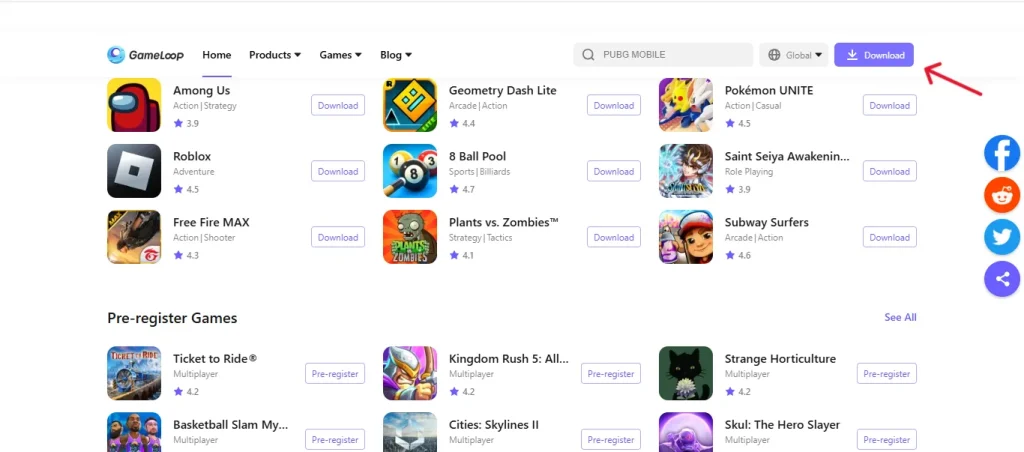
Download Emulator for CloudStream PC
Step 02
Download CloudStream APK

Visit our website and click the “Download” button to get the CloudStream APK for PC. The APK file will download in a few moments.
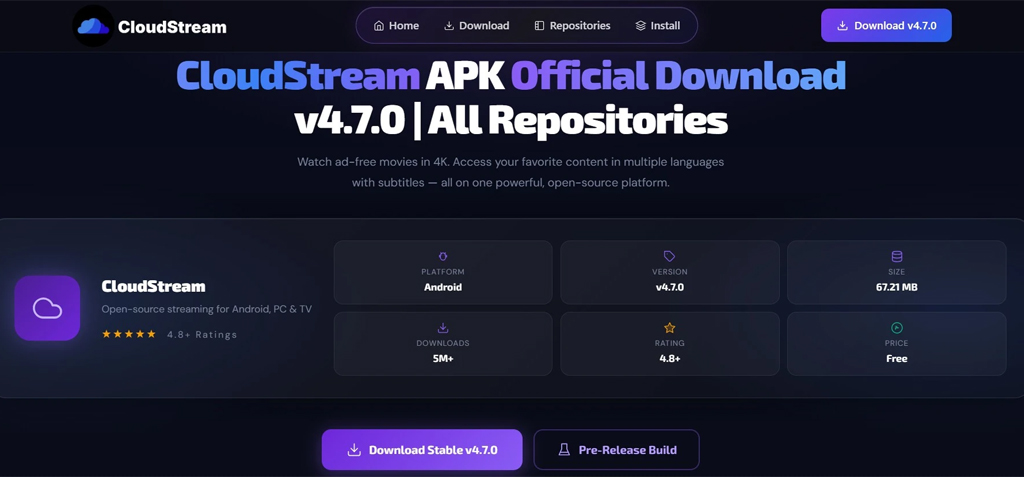
Download CloudStream APK for PC
Step 03
Install CloudStream on PC

Find “Local APK Installation” in the emulator.

Gameloop: Click three-bar menu at top-right
BlueStacks: Find “Install APK” or press Ctrl+Shift+B

Select the CloudStream APK — installation completes and app launches automatically.
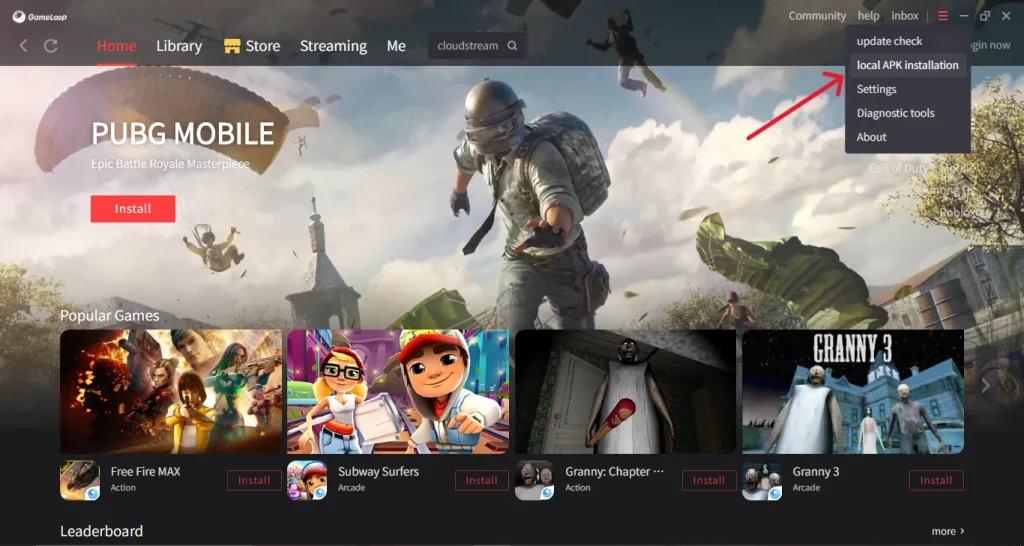
Install CloudStream APK on PC
Step 04
CloudStream is Ready on PC!

CloudStream launches automatically after installation. Add your favorite repos and start streaming movies, anime, and TV shows on your Windows PC!
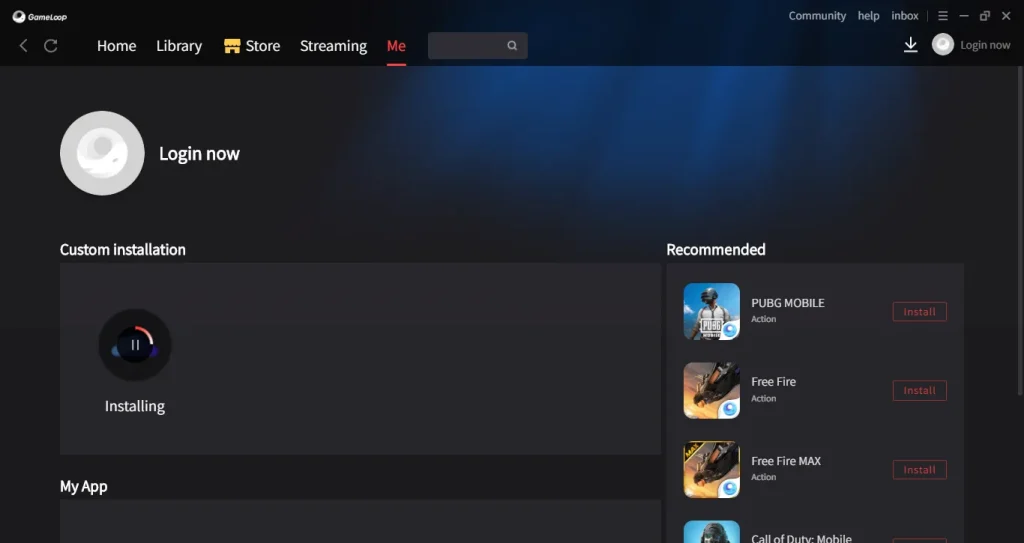
CloudStream Installation Complete on PC
2
Installation Method
Install Without an Emulator (WSA)

For Windows 11 users who want a native experience — install CloudStream using Windows Subsystem for Android (WSA) without any emulator.

Step 01
Enable Developer Mode in WSA

Open WSA, go to “Advanced Settings” and turn on “Developer Mode.”
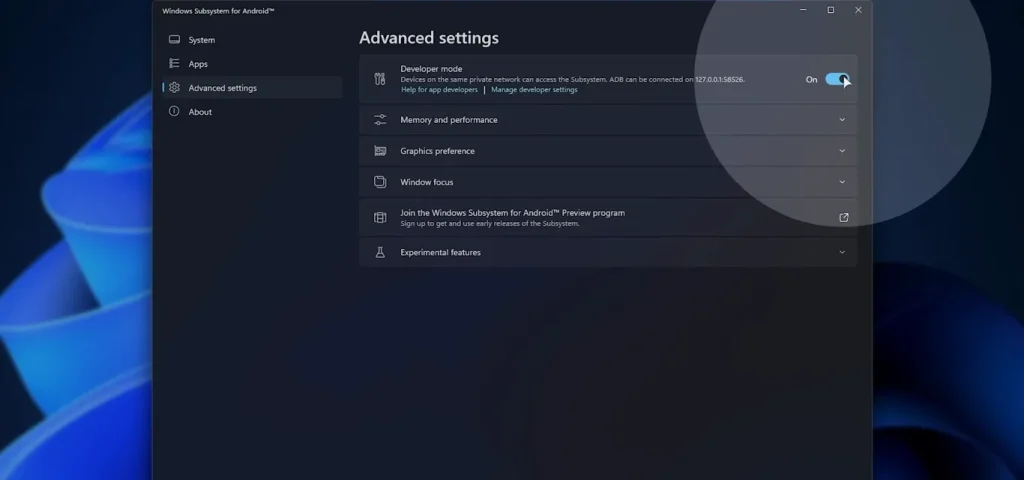
Enable Developer Mode WSA
Step 02
Enable USB Debugging

Click “Manage Developer Settings” and turn on “USB Debugging.”
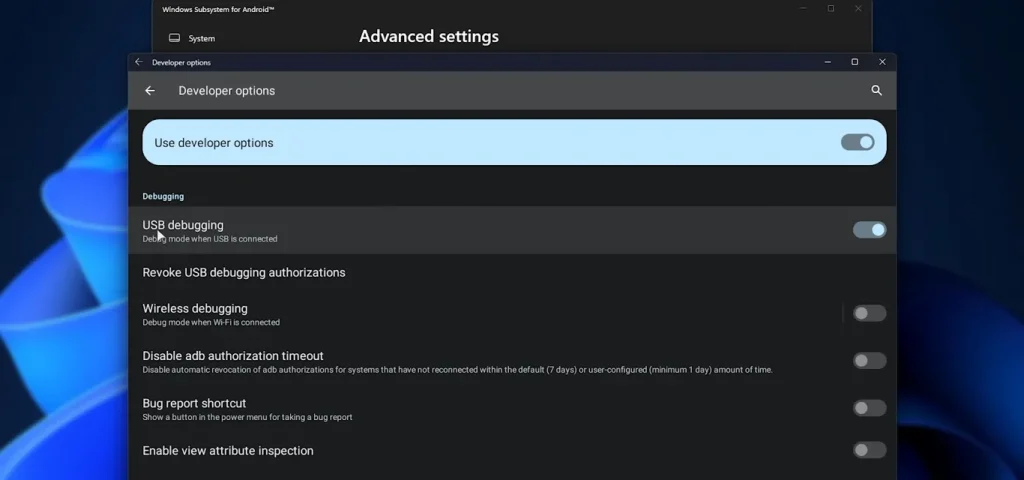
Enable USB Debugging WSA
Step 03
Download & Install WSA-Pacman

Visit GitHub WSA-pacman, download and install it on your PC.

Step 04
Turn On WSA & Allow

Open WSA-pacman, turn on “WSA” and click “Allow” when prompted.
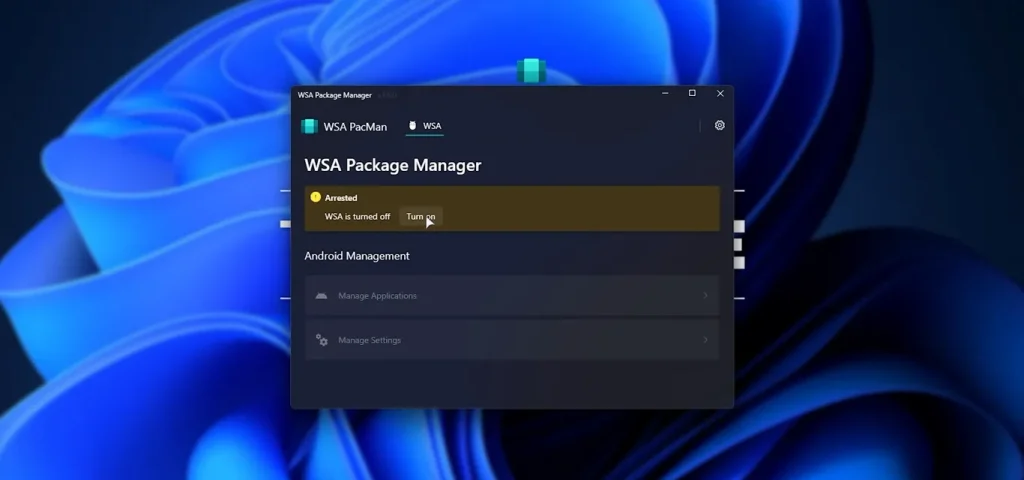
Turn on WSA
Step 05
Download CloudStream APK

Visit our website and click “Download” to get the CloudStream APK file.
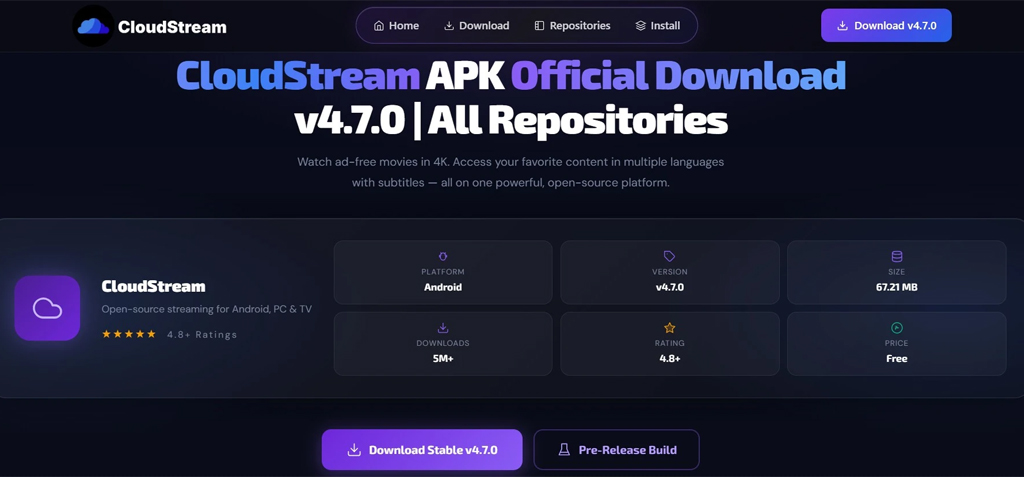
Download CloudStream APK
Step 06
Open with WSA Package Manager

In File Explorer, right-click the APK → “Open with” → choose WSA Package Manager.
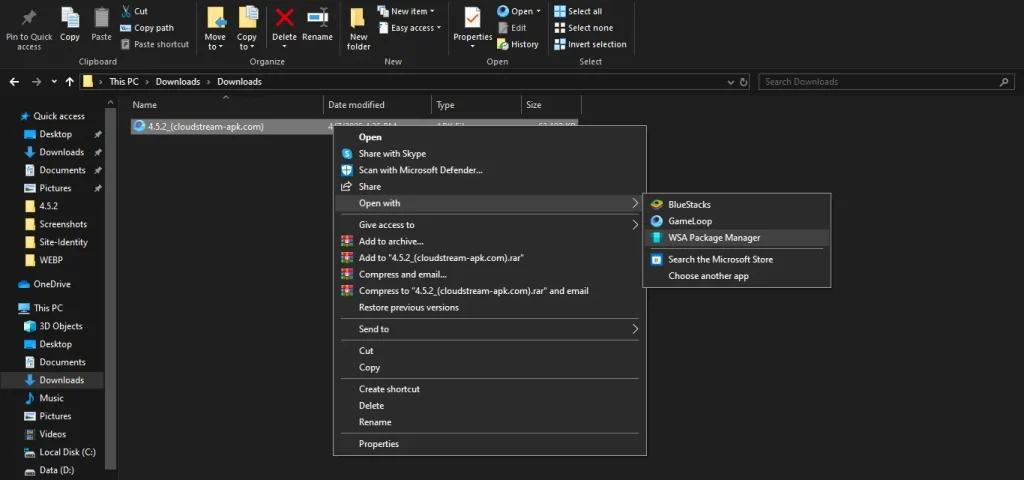
Open with WSA Package Manager
Step 07
Click Install — Done!

Click “Install” to complete. CloudStream is now installed on your PC without any emulator!
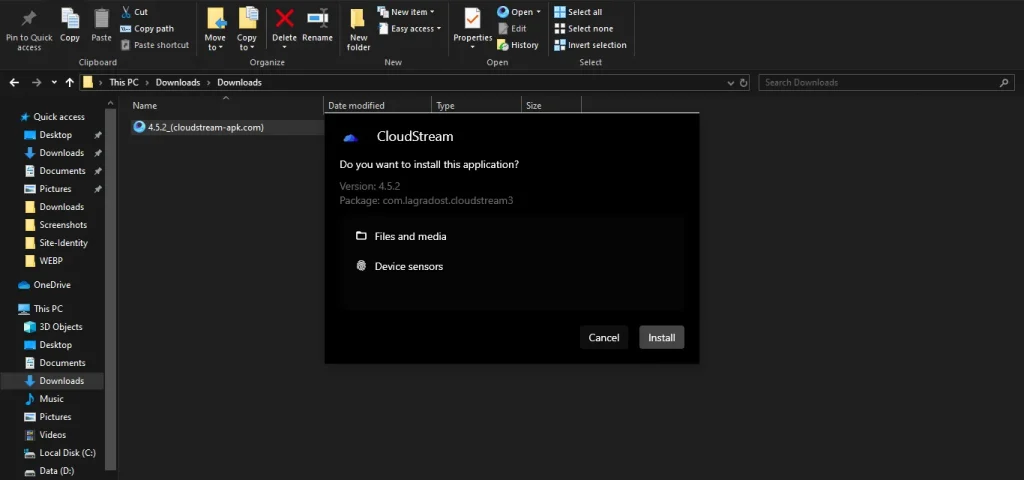
Install CloudStream WSA Complete
📌 Note
You must first install Windows Subsystem for Android (WSA) on your PC before following Method 2. WSA only works on Windows 11.

How to Use CloudStream on PC

Once installed, add repositories and start streaming in minutes. Follow these simple steps.

Step 01
Select Language & Layout

Launch CloudStream and select your preferred language, media type, and layout on the welcome screen.
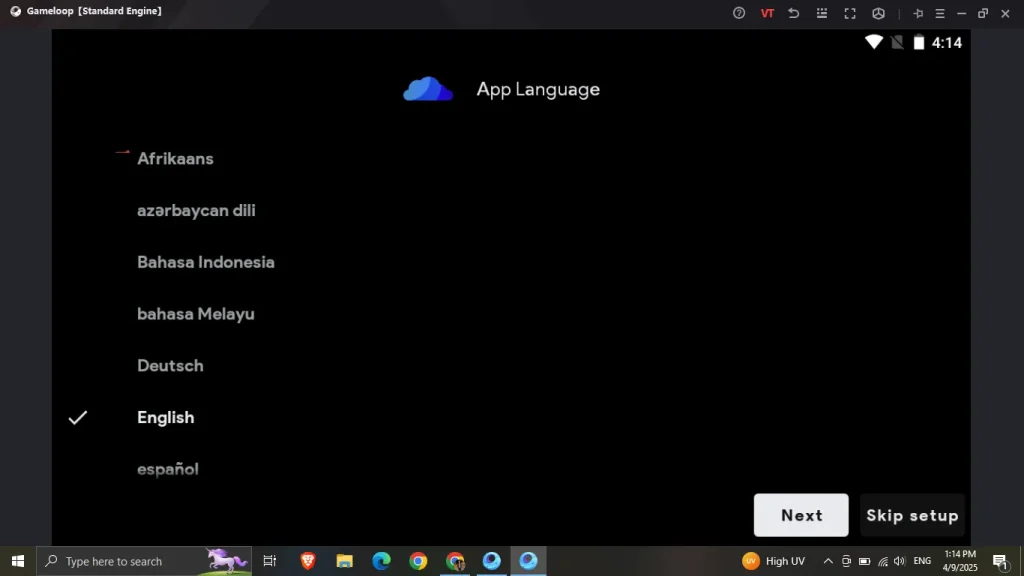
Select Language in CloudStream PC
Step 02
Add a Repository

Click “Settings”“Extensions”“Add Repository” → enter URL or Shortcode → click “Add Repository” then “Open Repository.”
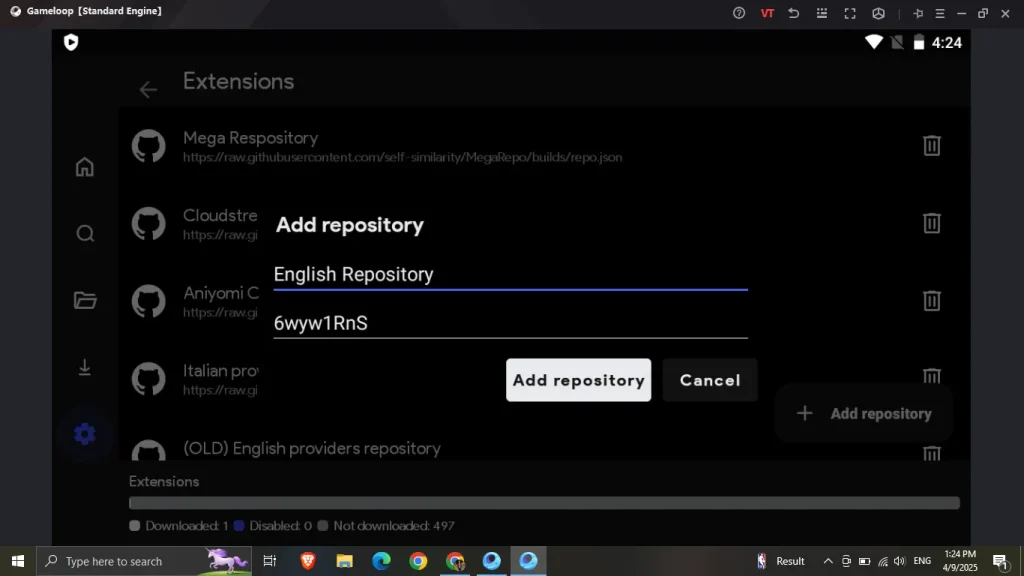
Add Repository in CloudStream PC
Step 03
Install Extensions & Plugins

A list of available plugins will appear. Click the download icon next to any extension to install it instantly.
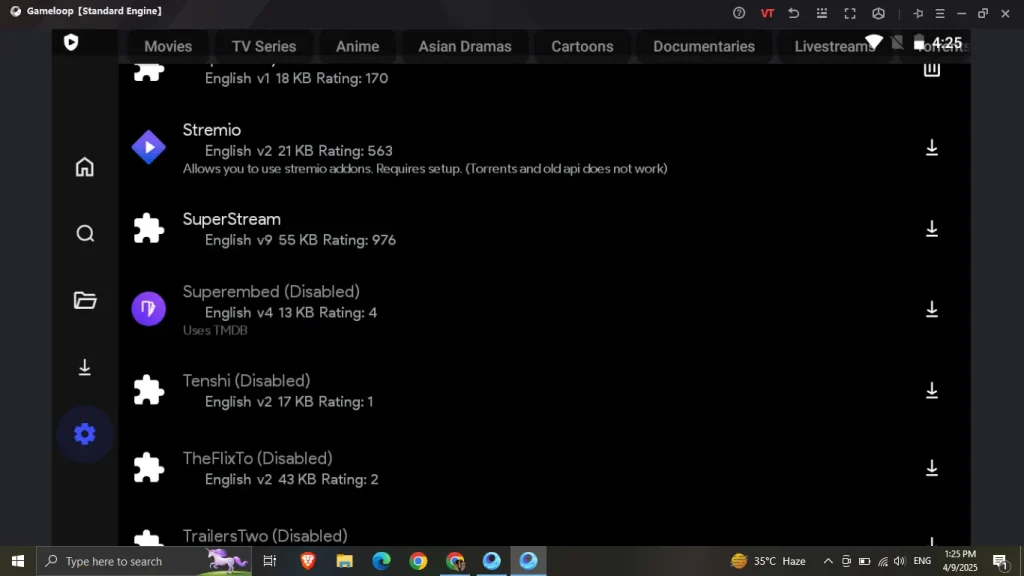
Install Extensions CloudStream PC
Step 04
Select & Watch Content

Go to Home → click “None” at bottom-right → select your installed extension → browse and pick content.
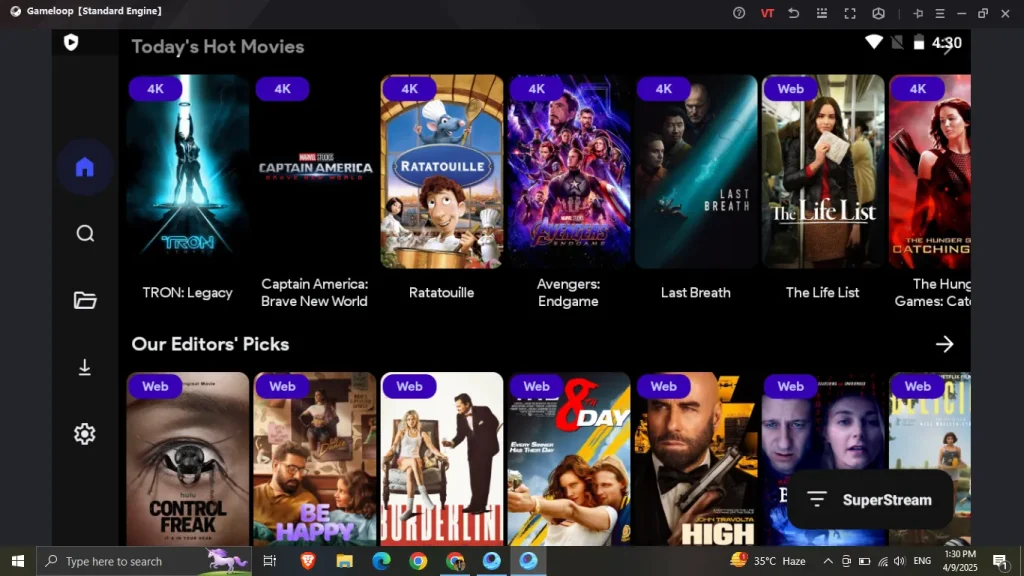
Select Content CloudStream PC
Step 05
Play or Download

Click “Play” to stream immediately, or “Download” to save for offline viewing. Use “Search” to find specific content.
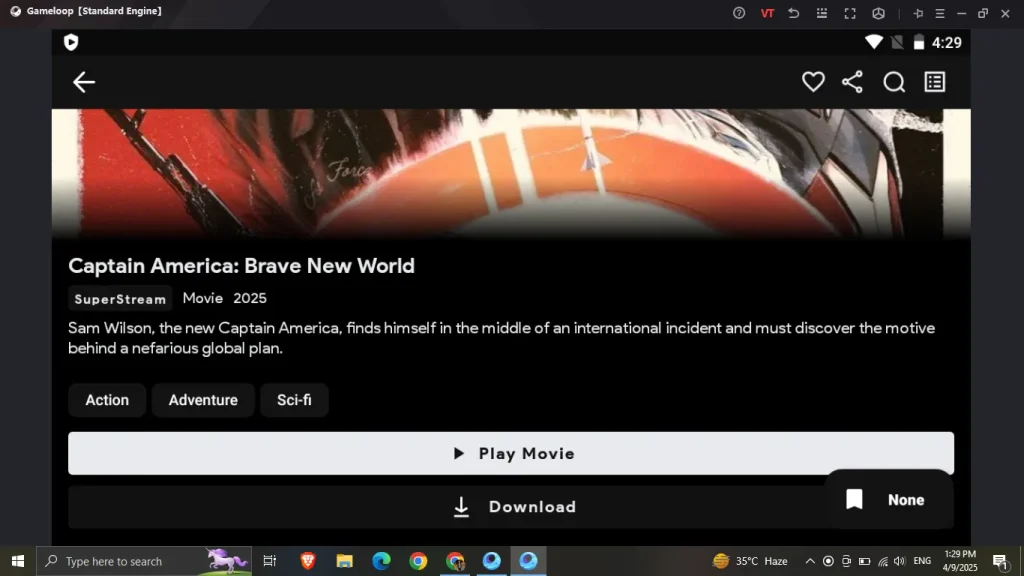
Play Content CloudStream PC

How to Update CloudStream on PC

Follow these 3 simple steps to update CloudStream to the latest version on your Windows PC.

1
Uninstall Old Version
Open the emulator → go to “Me” section → find CloudStream → hover → click three dots → select “Uninstall.”
2
Download Latest Version
Visit our website and click “Download” to get the updated and latest version of the CloudStream APK file.
3
Install Latest Version
Install using the same process described in Method 1 (Emulator) or Method 2 (WSA) above.

Tips & Troubleshooting

Optimize CloudStream performance and fix common issues on Windows PC.

Performance Tips
Free up storage — Remove unnecessary files from your PC to run the app smoothly without slowdowns.
Stable internet — Use at least 5 Mbps connection for a smooth streaming experience on PC.
Clear app cache regularly — Helps free up space inside the emulator and keeps performance smooth.
Check for updates regularly to get the latest features, content, and optimized performance.
Troubleshooting
Content not loading? — Use a reliable VPN if you face difficulties finding or streaming content.
Cache issues? — Clear app cache in emulator settings and ensure enough device storage is available.
Slow performance? — Use Gameloop or BlueStacks — they work smoothly without lag on most PCs.
App keeps crashing? — Reinstall the app or emulator. Update to the latest version and try again.

Frequently Asked Questions

Everything you need to know about installing and using CloudStream on PC & Windows.

Is CloudStream safe and legal to use on PC?
CloudStream is a safe and legal streaming option for PC. It doesn’t host any files and works on an extension system, so there are no privacy or security concerns. Legality can vary depending on your country’s policies.
Can I install CloudStream on PC without an emulator?
Yes! Install CloudStream without an emulator using Windows Subsystem for Android (WSA). Install WSA and WSA-pacman on Windows 11, then follow Method 2 in this guide above.
Can I download movies on CloudStream for PC?
Yes! Select any content and click the Download button to save movies or TV shows for offline viewing on your PC.
Which emulator is best for CloudStream on PC?
Both Gameloop and BlueStacks are highly recommended. They work smoothly without lag on most Windows PCs. BlueStacks suits general use while Gameloop is optimized for performance.
How much RAM is needed to run CloudStream on PC?
Minimum 8 GB of RAM is required, but 16 GB is recommended for a smooth experience. Less RAM may cause the emulator to run slowly or crash during streaming.
CloudStream is not loading content on PC — what to do?
Check that you have added repositories in Settings → Extensions. If content still doesn’t load, use a reliable VPN — ISP restrictions often block repository URLs.
Conclusion — Install CloudStream on PC Today

CloudStream on PC lets users watch their favorite movies and TV shows on a big screen — completely free. No ads, no subscriptions, and no registration required. With premium features like offline downloads, 4K support, and a clean interface, it stands out among all free streaming apps.

There are two easy methods to install CloudStream on PC — using an Android emulator like Gameloop or BlueStacks (Method 1), or using Windows Subsystem for Android without an emulator (Method 2). Both work on Windows 11, 10, 8, and 7. Add your favorite repositories and start streaming today!