How to install CloudStream on Firestick & Fire TV — Free Guide (2026)
Install CloudStream on Firestick in minutes and get 100% free, ad-free access to movies, TV shows, anime, and live TV — no subscription, no sign-in, no Play Store required.
Downloader app on Firestick
What is CloudStream APK?
CloudStream or CloudStream 3 is a streaming app without ads. It offers users free movies, TV shows, live TV, anime, and more. There is no need for any sign-in or sign-up. Just download the app, install the repos and extensions, and watch whatever you want — completely free.
Premium Features of CloudStream APK
All the features you need for a perfect streaming experience — completely free.
100% Free & Secure
CloudStream provides premium content without costing a penny. Safe and secure for all devices including Firestick.
Download Option
Don’t have time now? Download your favorite content and watch it later — even offline, anytime.
High-Quality Content
Watch content in your desired quality. Even big-screen Firestick users can enjoy Ultra HD streaming.
Vast Content Library
Content from all over the world. Watch movies and shows from every country in multiple languages.
Highly Compatible
Works perfectly on Firestick, Fire TV, Android TV, smartphones, and PC. One app for all devices.
User-Friendly Interface
Best UI/UX among streaming apps. Easily navigate to any section and find your desired content instantly.
How to Install CloudStream on Firestick / Fire TV
Follow these 3 simple steps to install CloudStream on your Firestick or Fire TV device.
Enable “Apps from Unknown Sources”
Before installing CloudStream, you need to allow your Firestick to install apps from outside the Amazon App Store.
Go to Settings
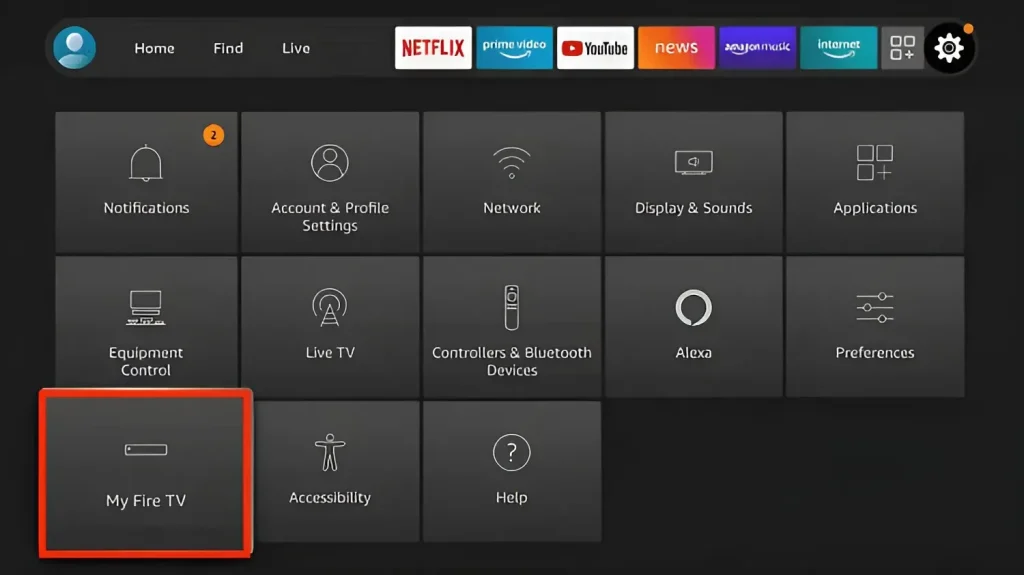
Click on the Firestick’s “Home” then “Settings” icon. Select “My Fire TV” and then “About.”
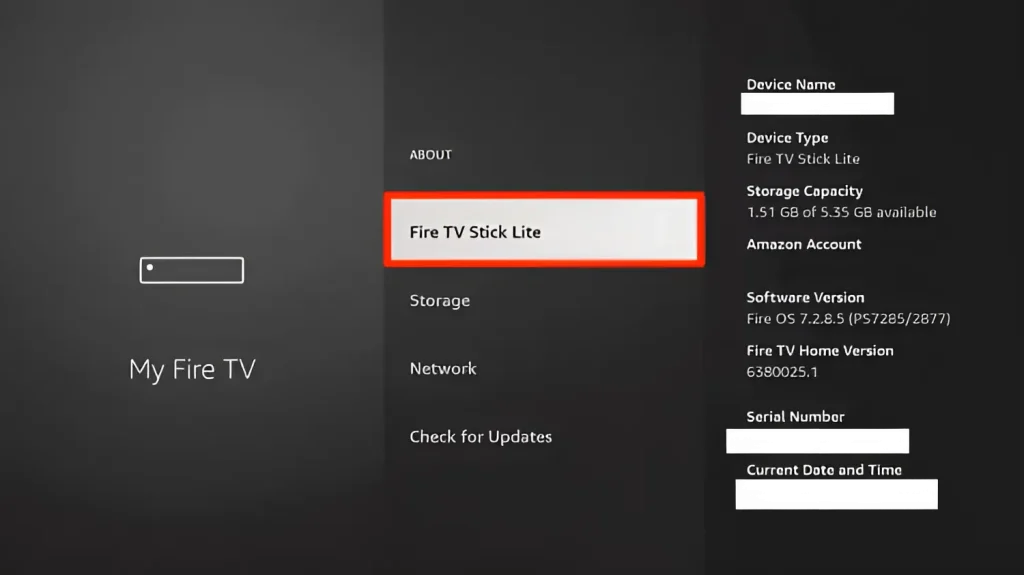
Click Fire TV Stick 7 Times
Navigate to “Fire TV Stick” and click on it 7 times to unlock developer options.
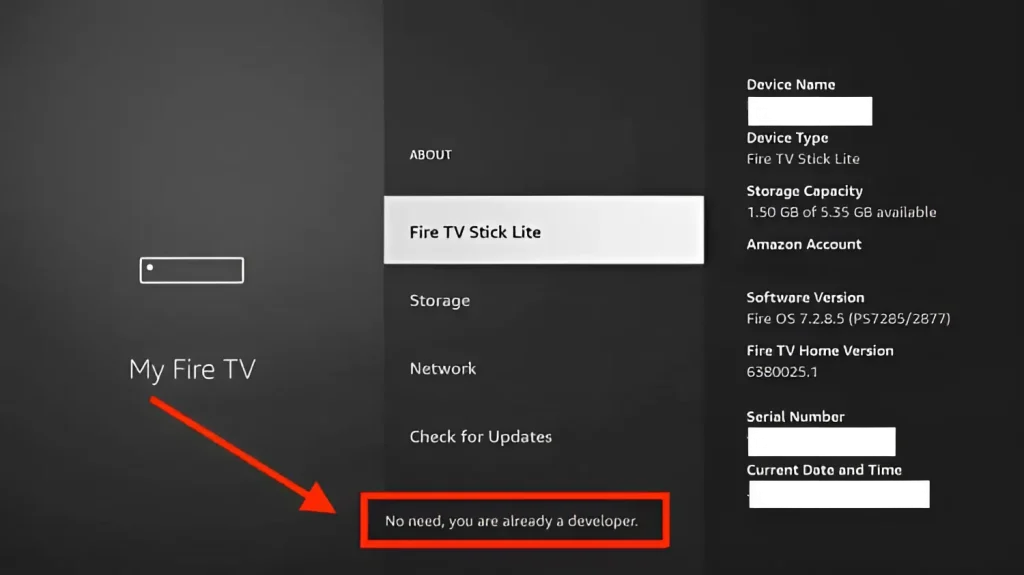
Developer Mode Unlocked
A pop-up will appear: “No need, you are already a developer.” Developer options are now available.
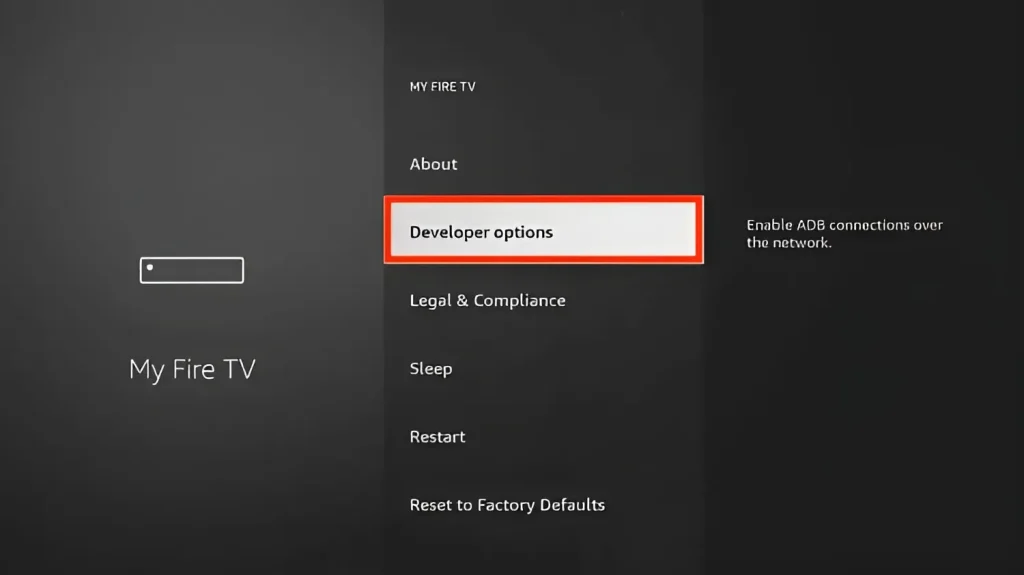
Open Developer Options
Go back and click on the “Developer” option below “About” to access developer settings.
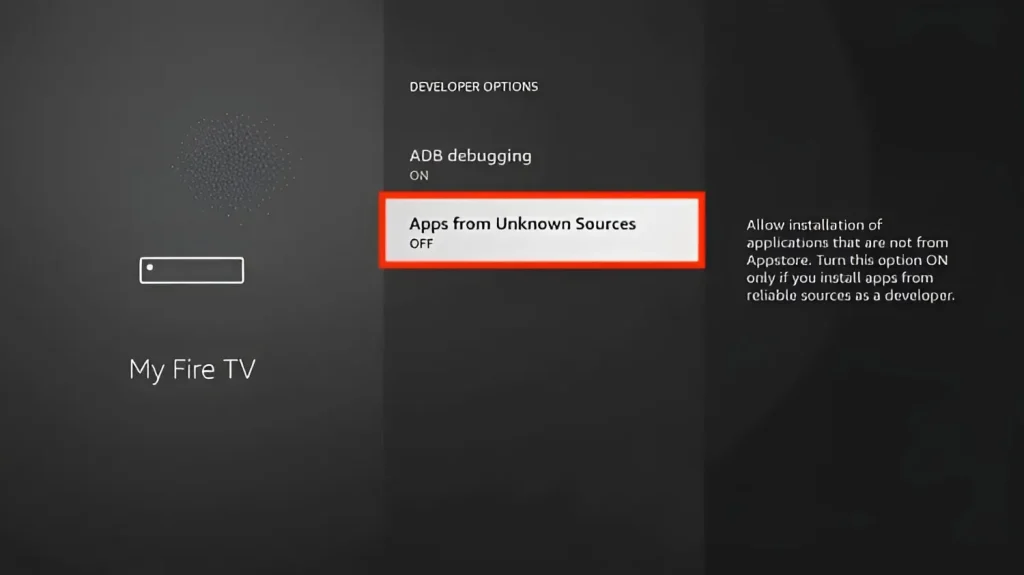
Enable Unknown Sources
Choose “Apps from Unknown Sources” and turn it ON to allow third-party APK installations.
Install the “Downloader” App
The Downloader app is required to sideload the CloudStream APK onto your Firestick.
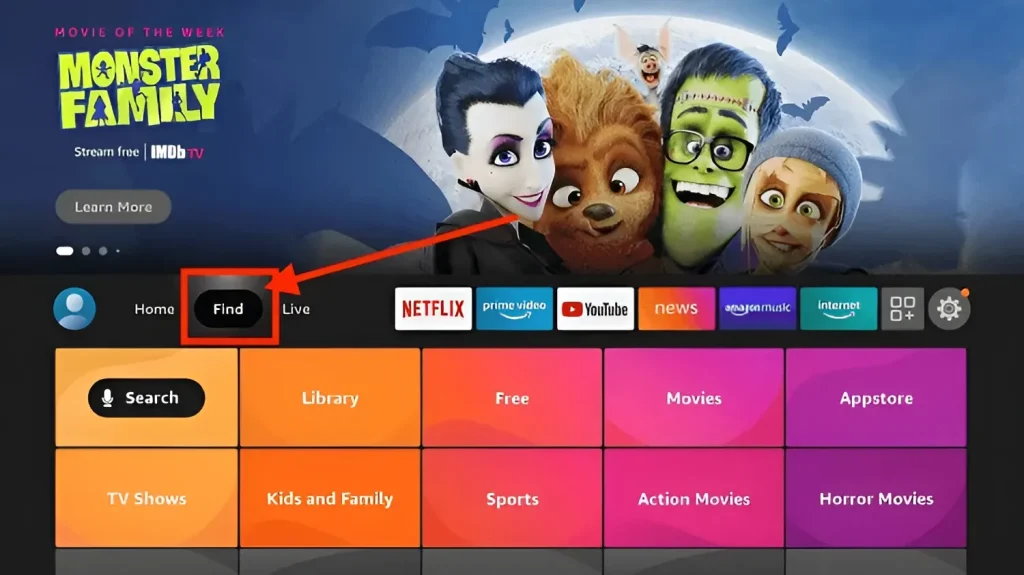
Click “Find” on Home
Go back to “Home” and click “Find” to access the search feature on Firestick.
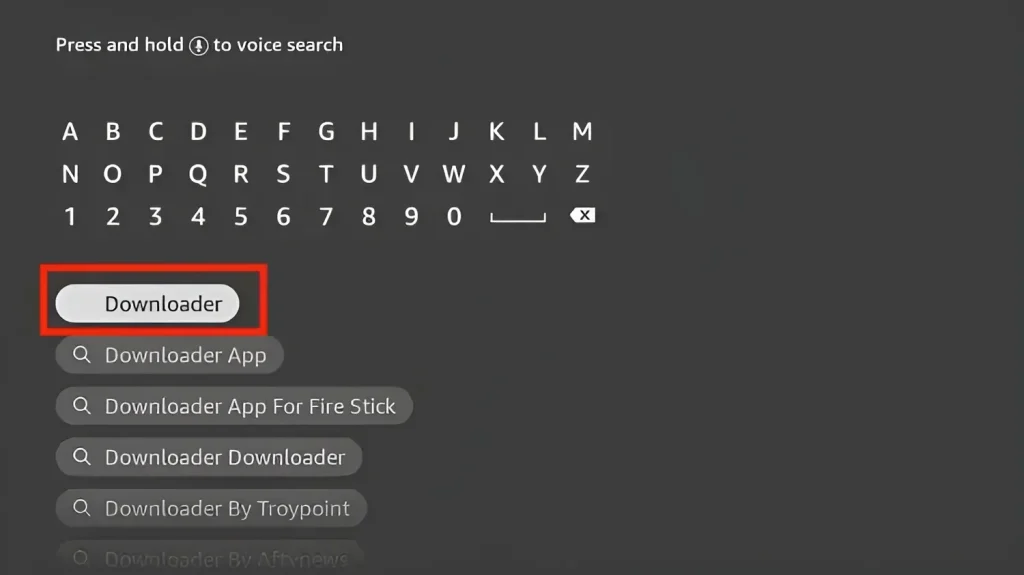
Search for “Downloader”
Select the “Search” icon and type “Downloader” to find the app in the Amazon App Store.
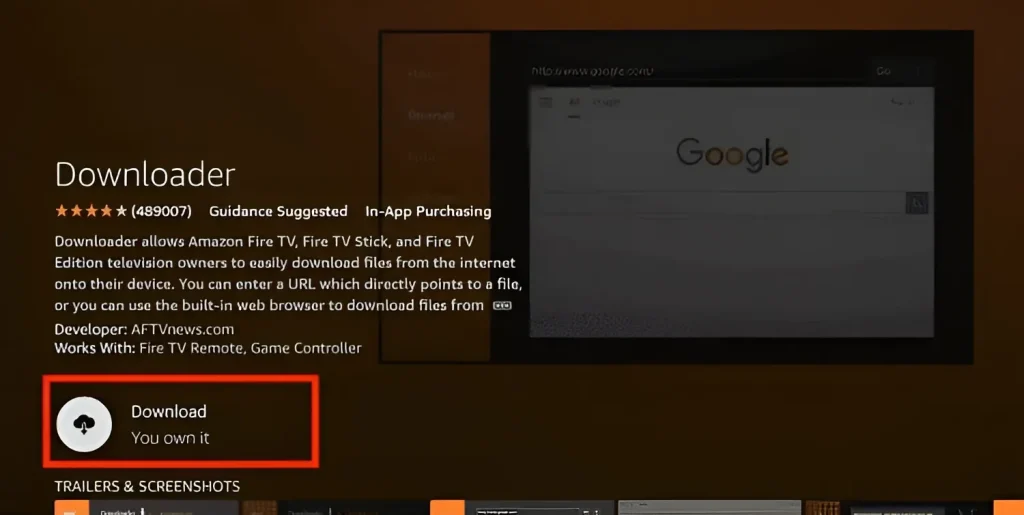
Download the Downloader App
Select the Downloader App from results and tap “Download” to install it on your Firestick.
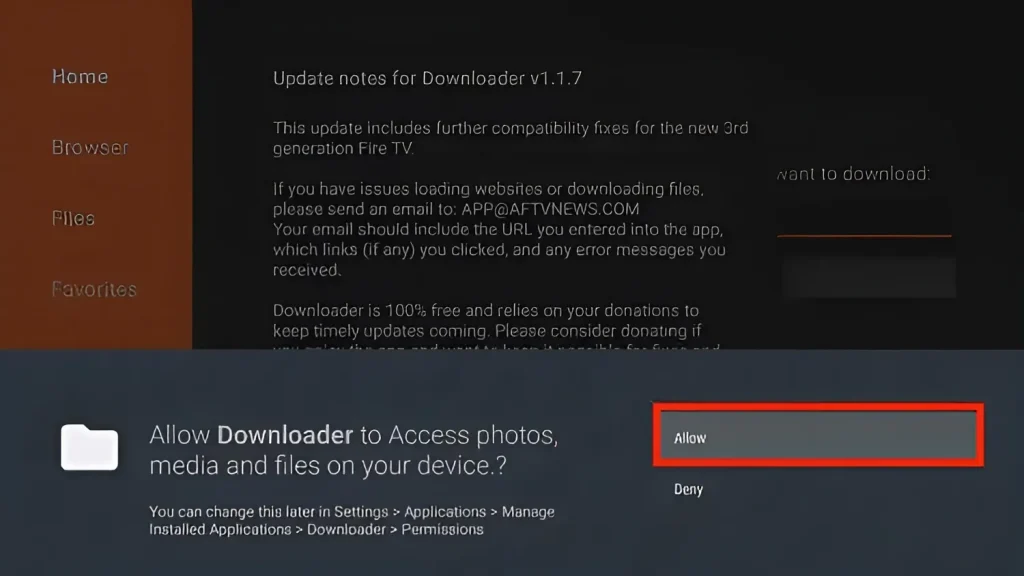
Open & Allow Access
Tap “Open” to launch the Downloader app. Click “Allow” to give necessary access permissions.
Install CloudStream on Firestick
Now use the Downloader app to install CloudStream APK directly on your Firestick.
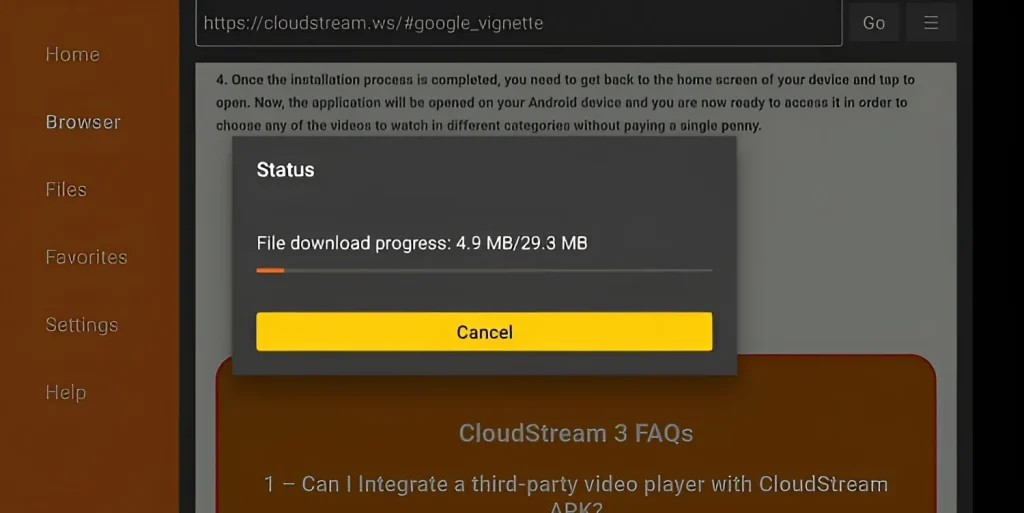
Download CloudStream APK
In Downloader, click the search bar. Enter “https://apkcloudstream.com” or code 3850517 and click “Go.” Select CloudStream and click “Download.”
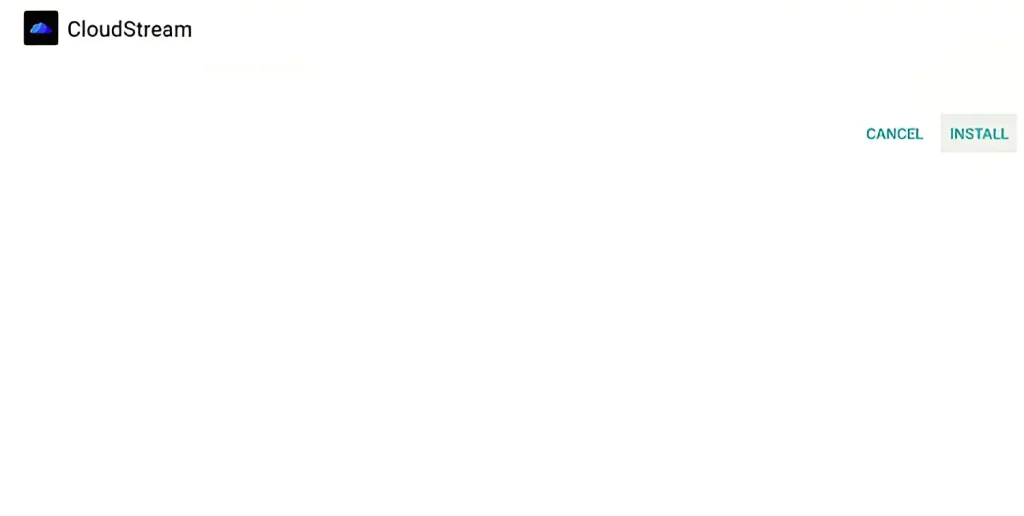
Click Install
After download completes, click the “Install” button to begin installing CloudStream on your Firestick.
Click Done & Enjoy!
Once installed, click “Done” and start streaming your favorite movies, anime, and TV shows — completely free and ad-free!
How to Use CloudStream on Firestick / Fire TV
Once installed, follow these steps to set up and start streaming your favorite content.
- Open the CloudStream App on Firestick and click “Allow” to give access.
- Select your preferred language and click “Next” then “Done.”
- Select your preferred media type and app layout.
- Navigate to “Settings” from the menu and click “Extensions.”
- Select “Add Repository” on the bottom right side.
- Add repository name (optional), URL, or short code and click “Add Repository.”
- Click “Open Repository” — you will see a list of extensions available.
- Click the “Download” icon to install your preferred extensions.
- Go back to home screen and click “None” at the top right side.
- Select a plugin that you installed previously to browse its content.
- Browse movies, TV shows, anime, and cartoons — select your desired content.
- Click “Play Movie” to watch online or “Download” to save for offline viewing.
Is CloudStream on Firestick Safe & Legal?
Know the facts before you use CloudStream on your Firestick.
Safe to Use
When tested with multiple virus and malware detection tools, no harmful or suspicious files were found. CloudStream does not host any content — it uses a repo/extension system.
- No malware or spyware detected
- No harmful files on the device
- Use VPN for extra security
Legality
CloudStream APK does not host any type of content. It provides repos and extensions that crawl over multiple streaming platforms — making it legal to install and use.
- Legal to install and use
- Does not host any files
- User responsibility for content
Frequently Asked Questions
Everything you need to know about CloudStream on Firestick & Fire TV.