How to Install CloudStream on Android TV & Google TV – Step-by-Step Guide 2026

3 simple methods to install CloudStream on your Android TV, Google TV, or Smart TV. Watch 4K content for free — no ads, no subscriptions, no registration required.

Downloader Code
1179689
Enter this code in the
Downloader app on your TV
Install CloudStream on Android TV and Google TV — Free Streaming App

Premium Features of CloudStream for Android TV

Everything you need for a perfect big-screen streaming experience — completely free.

No Registration Required
No sign-up or subscriptions needed. Just download, install repos, and start watching instantly.
100% Free of Cost
Enjoy premium OTT content from all over the world without paying a single penny — ever.
No Ads or Pop-ups
Enjoy uninterrupted streaming — no annoying ads or pop-ups during your favorite content.
Safe and Secure
Lightweight, safe, and secure for all devices. Doesn’t host content and follows all user policies.
4K High-Quality Content
Watch your favorite content in 4K, 2K, and 1080p on your big screen Android TV.
Downloadable Content
Download your favorite movies and shows and watch offline anytime, anywhere without internet.
Highly Compatible
Works on Android TV, Google TV, and Smart TV with zero lag and a modern big-screen interface.
Customized Subtitles
Supports multiple subtitle customization options for a perfect viewing experience for all users.

Requirements to Install CloudStream on Android TV

Make sure you have everything ready before installing CloudStream on your Android TV or Smart TV.

System Requirements
Developer ModeEnable Developer Mode & Unknown Sources
Downloader AppDownloader App or ES File Explorer
CloudStream APKLatest version of CloudStream APK file
Internet ConnectionStable internet connection (10 Mbps)
USB DriveStorage device — USB drive (for Method 2)
Android TV BoxRequired only for non-Android Smart TVs
1
Installation Method
Using Downloader App

The easiest method to install CloudStream on Android TV or Google TV. Install the Downloader app from Play Store and sideload the CloudStream APK directly.
Step 01
Install Downloader App
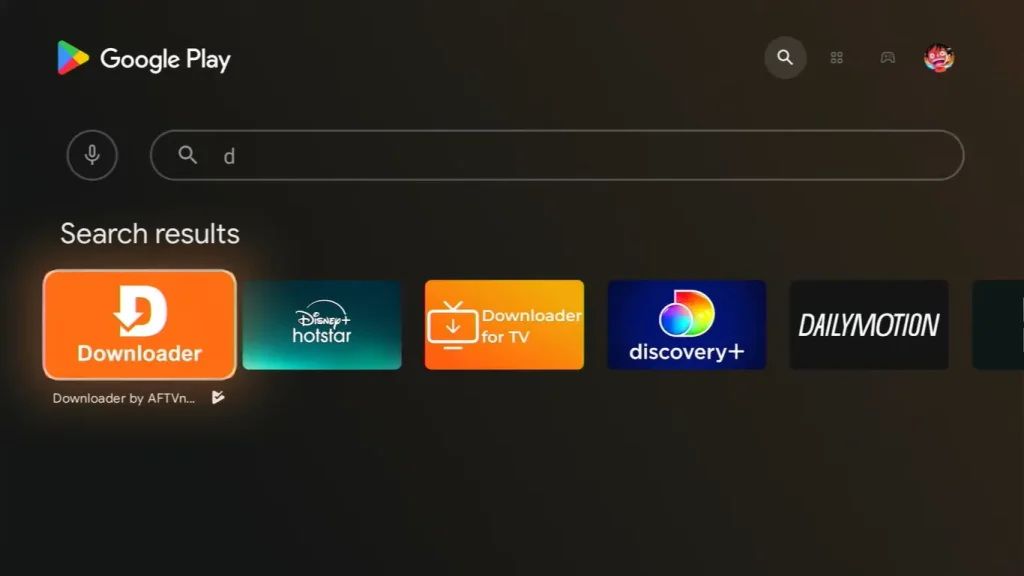
Install the Downloader app from the Play Store on your Android TV or Google TV.
1
Launch your Android TV/Google TV and go to “Apps.”
2
Go to the Play Store, select “Search” and type “Downloader.”
3
Select the Downloader App and install it on your Android TV/Google TV.
Search and Install Downloader App on Android TV
Step 02
Enable Unknown Sources
Allow your TV to install apps from outside the Play Store.
1
Navigate to “Settings” on your Android TV/Google TV.
2
Scroll down and select “Security & Restrictions.”
On Google TV: Select App > Security & Restrictions
3
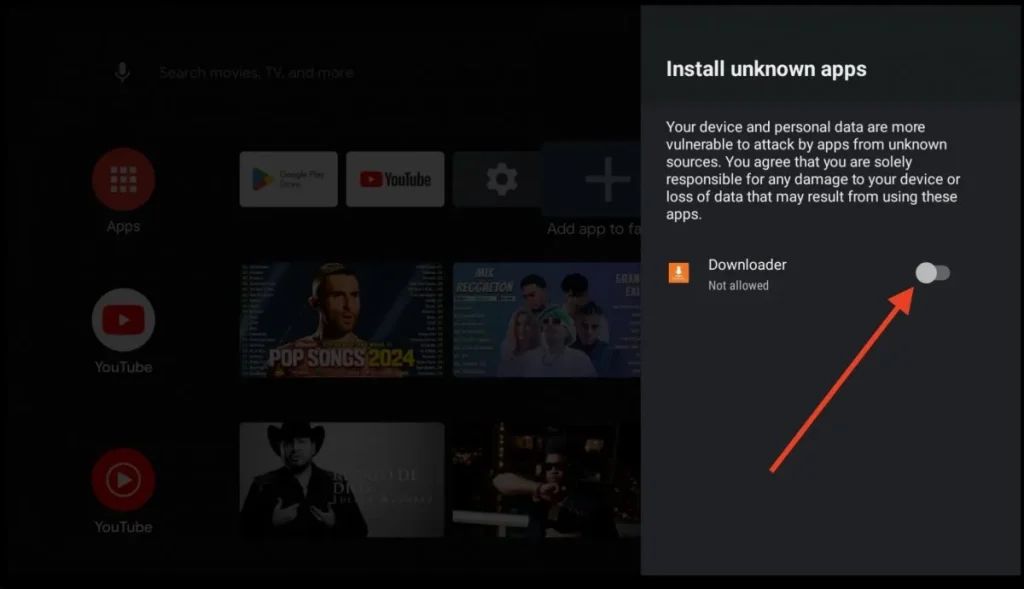
Select “Unknown Sources” → select the “Downloader” app → enable it.
Enable Unknown Sources on Android TV for CloudStream
Step 03
Open Downloader & Enter URL
Open the Downloader app and enter the CloudStream website URL or shortcode.
1
Open the Downloader app and click “Allow.”
2
Navigate to the “Home” tab and click the search bar.
3
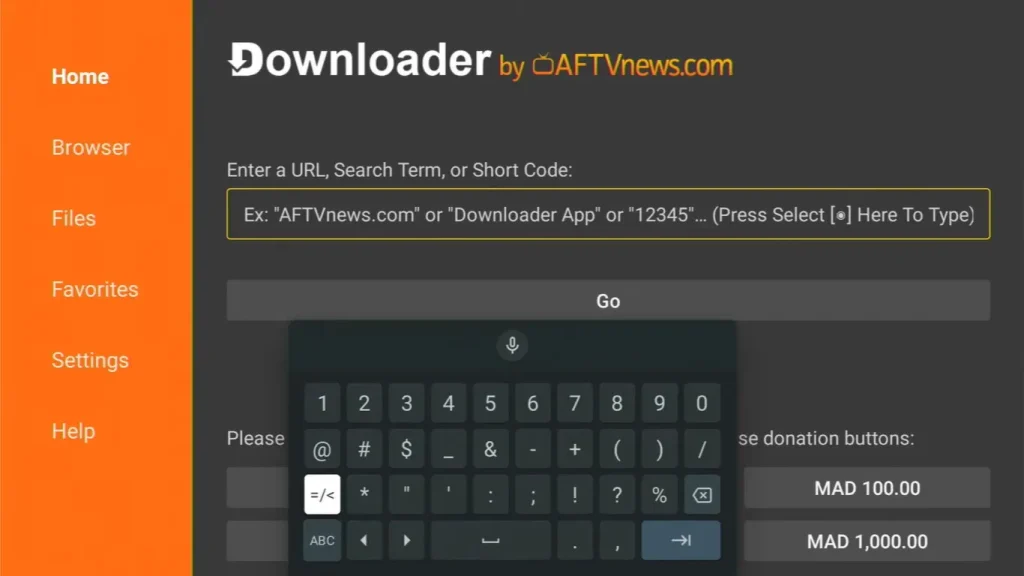
Enter URL: https://apkcloudstream.com or code 1179689 and click “Go.”
Enter CloudStream URL or Downloader Code 1179689
Step 04
Download & Install APK
Download the CloudStream APK and start the installation on your TV.
4
Find and click the “Download” button to get CloudStream APK.
5
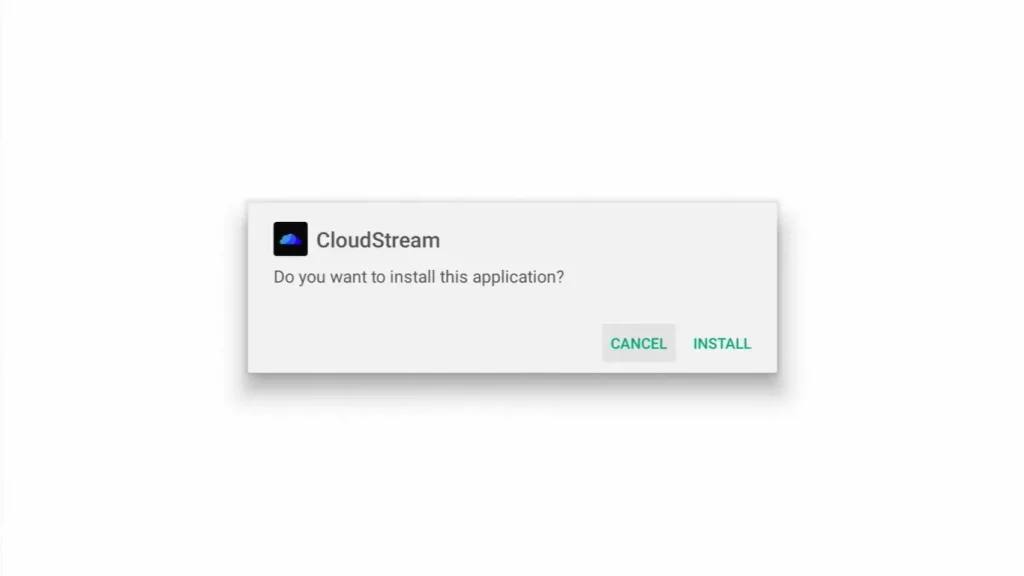
After downloading, click “Install” to start the installation.
Download and Install CloudStream APK on Android TV
Step 05
Launch CloudStream
Installation complete! Open CloudStream and start enjoying unlimited streaming.
6
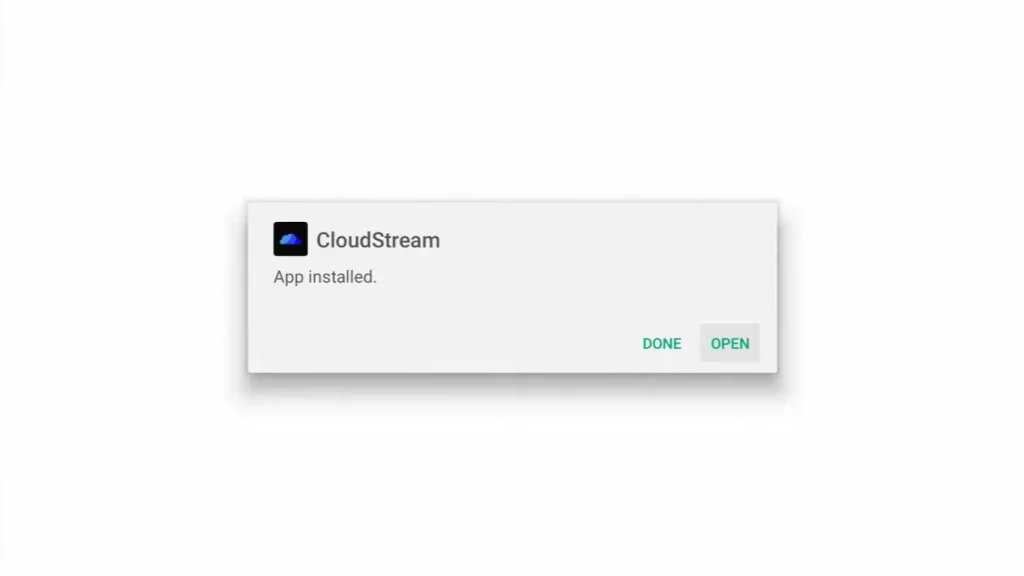
After installation, click “Done” or “Open” to launch CloudStream.
Tip: Delete the CloudStream APK file after installation to free up storage space on your TV.
CloudStream Successfully Installed on Android TV
2
Installation Method
Using ES File Explorer

Install CloudStream using a USB drive and ES File Explorer — ideal if you prefer to download the APK on your PC first and transfer it to the TV.
Step 01
Download File Explorer App
Install ES File Explorer or FS File Explorer on your Android TV first.
1
Download and install “ES File Explorer” or “FS File Explorer” on your TV.
2
Follow the same download and installation process as the Downloader App (Method 1).
Step 02
Download CloudStream APK on PC
Download the APK on your computer and transfer it to a USB drive.
1
On your computer, visit our website and click “Download” to get the CloudStream APK.
2
Save the downloaded APK file to a USB storage device.
3
Connect the USB drive to your TV through the USB port.
Step 03
Open ES File Explorer
Navigate to your USB drive and locate the CloudStream APK file.
1
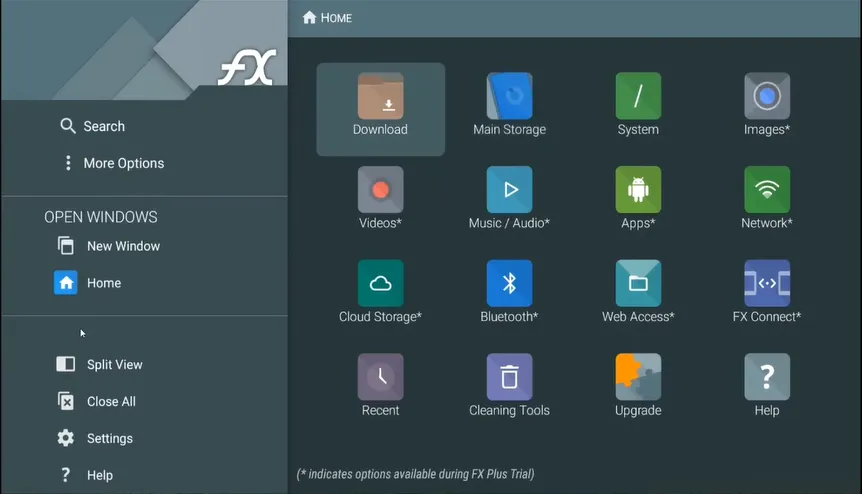
Open ES File Explorer and navigate to the connected USB device.
2
Find the CloudStream APK file and select and open it to begin installation.
Open ES File Explorer on Android TV to Install CloudStream
Step 04
Enable & Install CloudStream
Allow unknown app permissions and complete the CloudStream installation.
3
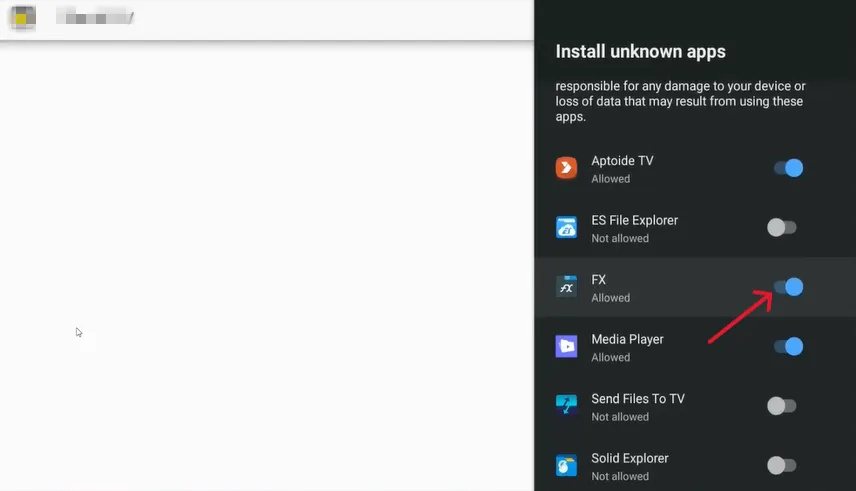
Allow the necessary permissions — select “Install Unknown Apps” and enable it.
4
Click the “Install” button to start the installation process.
5
Launch CloudStream after installation and enjoy unlimited streaming!
Enable Install Unknown Apps and Install CloudStream on Android TV
3
Installation Method
Install on Non-Android Smart TV

If your Smart TV is not Android and cannot install Android APK files directly, you can use an Android TV Box to get CloudStream up and running.

1
Get Android TV Box
Purchase an Android TV Box and connect it to your Smart TV using the HDMI port.
2
Prepare USB with APK
Download CloudStream APK on your PC and save it to a USB drive. Then connect the USB to your Android TV Box.
3
Install via File Manager
Open the File Manager on the TV Box, find the CloudStream APK file and install it.
💡 Good to Know
An Android TV Box turns any non-Android Smart TV into a fully functional Android TV. Once connected via HDMI, you can use all Android apps including CloudStream. The Android TV Box runs on Android OS and supports APK installations just like a regular Android device.

How to Use CloudStream on Android TV / Google TV

Once installed, follow these 3 simple steps to set up and start streaming your favorite content.

1
Launch CloudStream
After successful installation, launch the CloudStream app on your TV.
Select your preferred languages, media/content type, and app layout.
2
Add Repositories & Extensions
Click on the “Settings” icon on the left side and select “Extensions.”
Click “Add Repository” and enter the repository’s name and URL/Short Code.
A list of extensions/plugins will appear. Click the download icon to install your preferred extensions.
3
Select and Play Content
Go back to the home screen and click “None.” Select your installed extension/plugin.
You will see an extensive library of premium content — movies, anime, TV shows, live TV and more.
Select your favorite content and click the “Play” button to start watching.
Click “Download” to save your favorite content and watch it offline.
Use the “Search” option at the top to quickly find your desired content.
Click “Sources” on the play screen to select your desired quality and subtitles.

Frequently Asked Questions

Everything you need to know about CloudStream on Android TV & Smart TV.

Is CloudStream free of cost for Android TV?
Yes. CloudStream is completely free — no subscriptions, no registration, no charges. Watch premium movies, TV shows, anime, and live TV from around the world at no cost.
What if my Smart TV does not support Android OS?
Use an Android TV Box if your Smart TV is not Android. Save the CloudStream APK to a USB drive, connect it to the Android TV Box via HDMI, and install it using the File Manager.
Can I download movies using CloudStream on Android TV?
Yes. Select any content and click the Download button to save movies or TV shows for offline viewing. Make sure you have enough storage or connect an external USB device.
Which installation method is best for Android TV?
Method 1 using the Downloader App is the easiest. It does not require a PC or USB drive and can be completed entirely on your TV in a few minutes using the code 1179689.
What is the CloudStream Downloader Code for Android TV?
The official CloudStream Downloader Code is 1179689. Enter this code in the Downloader app search bar and click Go to directly access the CloudStream download page on your TV.
Can I watch 4K content on CloudStream for Android TV?
Yes. CloudStream supports 4K, 2K, and 1080p streaming on Android TV. Select your desired quality and subtitles by clicking Sources on the play screen for a fully customized viewing experience.